Update Microsoft Edge Web Browser
Updated at: Aug 13, 2025
This guide will step you through the process of updating your Microsoft Edge web browser. Do you need to know what version of Edge do I have?
Updating Edge on Desktop
This guide will show you how to manually tell Edge to check for updates and install them if they are found.
-
Click "Update" in the main toolbar
Edge has made the process of updating very easy; now when there is an update available, you will be prompted with a small green "Update" button/icon in the top-right of the Edge toolbar.
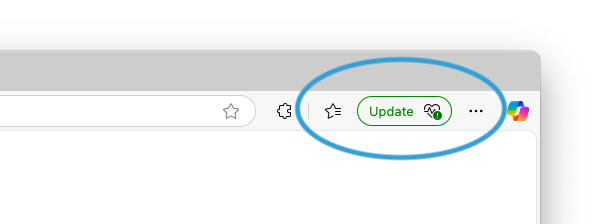
Click on the Update button/icon, this will reveal the main Edge menu.
-
Click "Restart Now"
In the main menu of Edge, you will see an alert that there is a New update available, with a blue button prompting you to Restart Now.
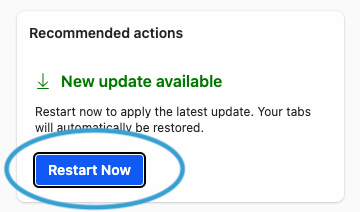
To complete the process of updating, click the Restart Now button. Edge will download the update, install it, and restart itself.
-
Edge updates and restarts itself
After Edge has restarted, you will have the latest version installed. You can confirm this by going to the homepage of whatismybrowser.com.
-
Edge is now up to date
Edge should check for updates and install them automatically, but sometimes the process fails or is delayed, so this will give you peace of mind that you have the latest version.
Running the latest version of your web browser is an important step in being safe and secure online.
Upgrading Edge Legacy
Do you have a really old version of Edge? As of January 2020, the original branch of Microsoft Edge has been discontinued and is now considered the "legacy" version. It won't receive updates and security fixes, so anyone who is still running it should upgrade immediately.


More guides and help for Edge
Need more help with Edge? Read our other Edge guides.