Update Chrome Web Browser
Updated at: Mar 17, 2026
This guide will step you through the process of updating Google's Chrome web browser on your computer.
Chrome automatically checks for updates
The good news is that Google Chrome automatically checks for updates every few hours and will download software updates as they become available. Auto-updating is enabled by default (and it's not easy to disable), so unless you have very intentionally turned it off, Chrome should take care of regularly updating itself.
If updates are available, Chrome prompts "New Chrome available"
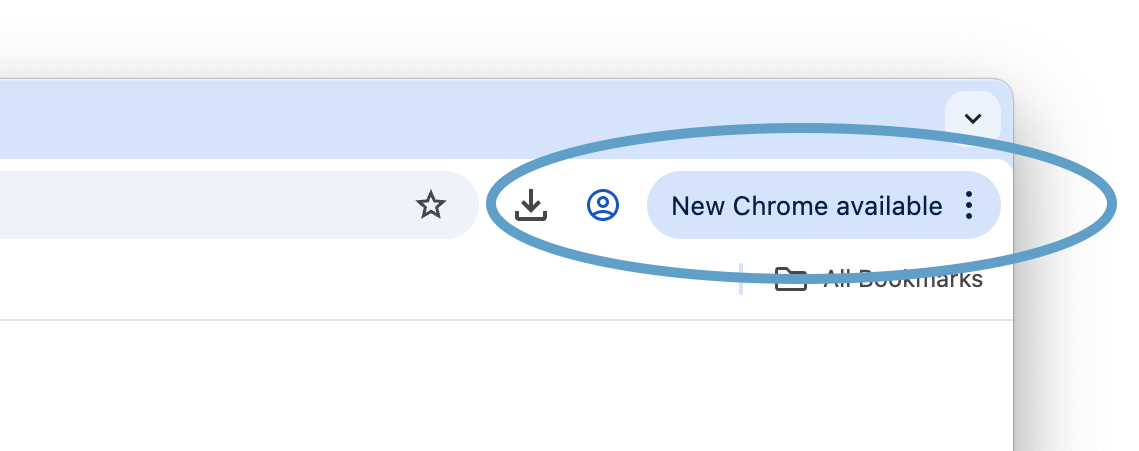
If Chrome finds an update to itself, all you need to do is relaunch Chrome for the updates to be installed. When an update is ready to install, you will notice a blue indicator in the top-right corner of any of your open Chrome windows, which says New Chrome available. It looks like this (circled in blue):
Clicking on this button will reveal Chrome's menu; the first item, highlighted in light blue is Relaunch to update, it also reassures you that Your tabs will reopen.
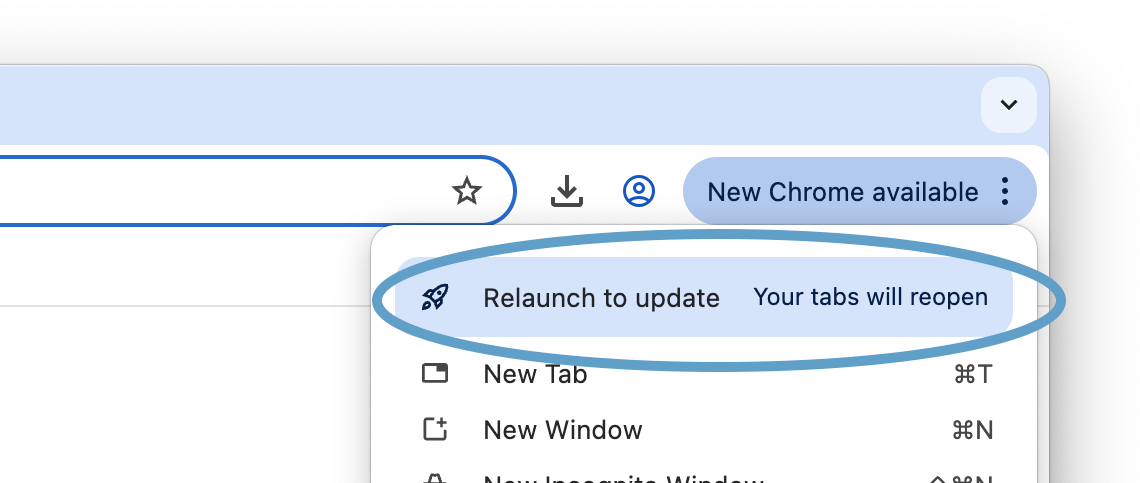
When you click Relaunch to update, Google will confirm that you want to restart Chrome. When you confirm your choice, Chrome will close itself, apply the updates, launch the latest version of Chrome, and re-open all the tabs you currently had open so that you can resume browsing the internet.
The process is normally very smooth and only takes a few seconds.
Force Chrome to check for updates
If you don't want to wait for Chrome to automatically check for updates every few hours, you can force Chrome to check for any available updates right now.
-
Click the "Customize and Control" button
In the top-right corner of the Chrome window you'll see the Customise menu icon - it looks like three little black dots on top of each other - click it.

This will reveal a menu with lots of options. One of them - located near the bottom of the menu - will be named "Help".
-
Hover your mouse on the "Help" menu item
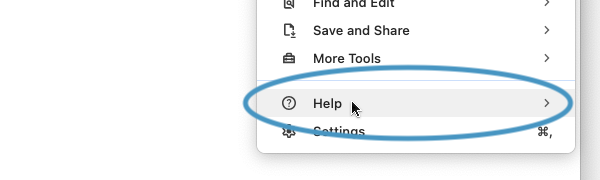
When you hover on the Help menu item another menu will appear out to the side - it contains the About Google Chrome option.
-
Click "About Google Chrome"
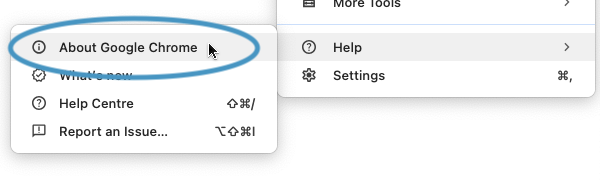
You will be taken to the About page for Chrome.
-
Chrome will now check for any updates
As soon as you open the "About" screen, Chrome will automatically check if there are any updates available for your copy of Chrome. If there are updates available it will download them. You don't need to do anything to start this process.
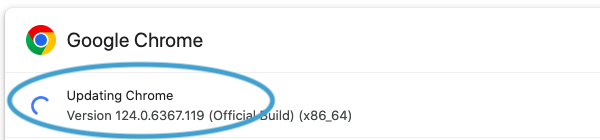
Chrome tells you that it's "Updating Chrome" while it downloads a newer version.
-
If Chrome finds updates, click "Relaunch" to install them
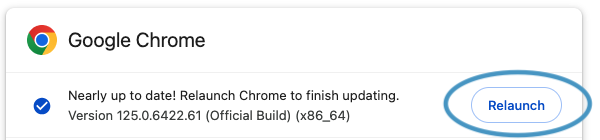
If Chrome finds updates, it will automatically download and install them. Once this is done you need to click the Relaunch button to finish this process. Clicking it will restart Chrome. Chrome should remember which websites you have open and reopen them when it starts up again.
-
When Chrome relaunches, you'll have the latest version
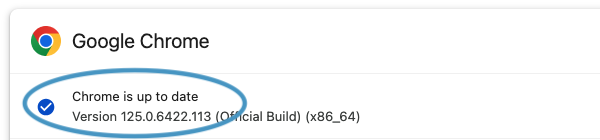
Now that Chrome has relaunched, if you follow those same steps to view the About Chrome screen, you'll see that Chrome now tells you that Chrome is up to date.
An easier way is to just look at our is my browser up to date page, where we'll confirm that Chrome is up to date, and also give you some other interesting information about it, including some of the important settings you might be interested in.
Updating Chrome in the future
In normal circumstances, Chrome will keep itself up to date automatically and you don't really need to do anything else.
If you are in the habit of Quitting your web browser and/or shutting your computer down at the end of the day, then Chrome should just update itself as a part of its normal behaviour each time it starts up, and you won't really need to worry about it.
But if you are like me and never really shut your computer down and instead just close the laptop lid, then you might find that Chrome prompts to you to relaunch it to install updates - so you'll need to actually click that Relaunch to update button occasionally!
What if Chrome has problems updating?
If Chrome has an issue failing to update properly, the first thing to do is simply: Try Again. Completely quit Chrome and restart it, and then follow these instructions again to open the "About" screen and thus prompt Chrome to check for updates.
Hopefully there was just a one-off problem and the second time you try to update it just works for you. If you keep getting the same error, you could try searching the internet for the error code and see if that returns any pages which help you solve the problem.
If you are working on a Corporate, Government, or Educational computer, there is a chance the IT Department has implemented an update policy which prevents you from updating Chrome yourself. If that's the case then you should hopefully "be in safe hands" and can trust they will keep everything running smoothly.
If auto-updating Chrome doesn't work, a last resort would be to completely re-install Chrome, by visiting Google's Chrome homepage and following the instructions there. Completely reinstalling Chrome isn't ideal, but it should still preserve your Bookmarks, History, Settings, and so on. It might also solve the problem of why Chrome isn't updating itself.
More guides and help for Chrome
Need more help with Chrome? Read our other Chrome guides.